 Français (France)
  Finnish (FI)
  English (United Kingdom)






Please note that simulation actions require a simulation plan.
You can run simuation on the project view by clicking on the 'Simulate' button. Simulation is run as a background process using the Monte Carlo method. You can use the application normally while the simulation is running and check whether results are available by clicking on the 'Check simulation' button. If simulation is finished, clicking this button shows additional buttons related to viewing and clearing simulation results.
Users with MonteCrystal plan can set calculated task risk impacts as tasks' simulation parameters by clicking on the 'Set calculated risks as simulation parameters' button.
To view results click on the 'Show simulation results' button. Above the button you can also select to display a so called tornado chart showing tasks' effects on simulation results.
Number of simulation rounds tells how many times project is calculated in the simulation. For each round each project task gets random cost and duration values, which are sampled from task specific probability distributions.
Only remaining tasks are simulated, which allows simulating projects that are already in progress. Actual costs and durations are taken as such and not simulated.
The attached picture shows how random costs from different rounds are distributed between minimum (in the example 100€) and maximum (in the example 1200€) values, when task cost follows so called beta-PERT distribution. Random costs fall typically close to the most probable cost in the distribution. Same logic applies to task duration.
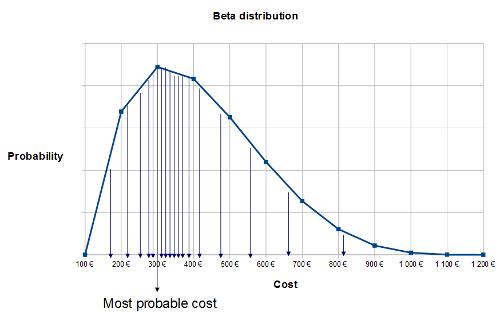
The result after large number of repetitions will be the probability distributions for total project cost and duration.