 Français (France)
  Finnish (FI)
  English (United Kingdom)






First open project list by selecting 'Projects' from the 'Projects' main menu. To view the project click on the project name link. Following information about the project is shown.
Left hand side of the screen:
- Name
- 'Copy project' -button (picture 1)
- Button for creating a new task (picture 1)
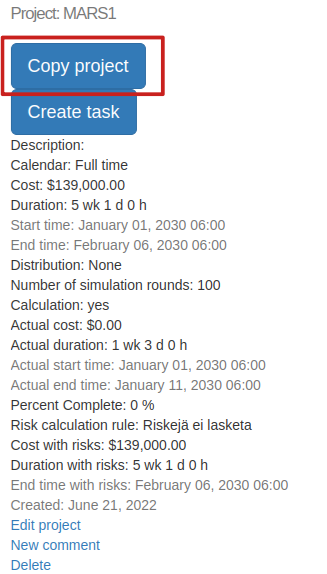
Picture 1. ''Copy project' and 'Create task' -buttons.
- Description
- Work time calendar
- Cost
- Duration
- Start time
- End time
- Probability distribution (requires simulation plan)
- Number of simulation rounds (requires simulation plan).
- Calculation mode (yes/no)
- Actuals (requires simulation plan)
- Actual cost
- Actual duration
- Actual start time
- Actual end time
- Percent complete information. Percent complete is calculated as a weighted average of tasks' percent complete information.
- Risk impacts (risk management requires MonteCrystal plan)
- Risk calculation rule (risk management requires MonteCrystal plan), which determines how risk affected cost and duration are calculated for project tasks. You can set rule to tasks when editing the project. Following options are available:
- 'Risks not calculated'. Risks do not affect task cost or duration.
- 'Expected value of risks'. Expected values of assigned risks' cost and duration are added to planned cost and duration.
- 'All risks'. Assigned risks' cost and duration impacts are added as such to planned cost and duration. Probabilities are not considered.
- Risk affected cost, see risk calculation rule above.
- Risk affected duration, see risk calculation rule above.
- Risk affected end time, see risk calculation rule above.
- Risk calculation rule (risk management requires MonteCrystal plan), which determines how risk affected cost and duration are calculated for project tasks. You can set rule to tasks when editing the project. Following options are available:
- Time of creation
- Link for editing the project
- Links for creating new comments
- Link for deleting the project
- 'Use actuals' button. Click on the button to see tasks' actual costs, start and end times in the task table. Also resource load (see below) is then shown based on tasks' actual start and end times. After clicking the button the text changes to 'Use planned data'. To return to the planned data click the button again.
- Button for changing the calculation mode (on/off). If calculation is on, task planned start times are calculated based on predecessors' planned end times and they cannot be changed manually in the task edit display. If calculation is off, task planned start times can be set manually regardless of predecessors' end times. Click on the button to change mode.
- 'Show duration and cost charts' button for viewing the graphical representation of project's planned, actual and risk affected durations and costs.
- 'Cumulative cost curve' button for viewing the cumulative cost of the project on a timeline (picture 2).
Note that simulation plan is required for showing actuals in the duration and cost charts as well as in the cumulative cost curve and MonteCrystal plan is required for showing risk affected durations and costs in the duration and cost charts.
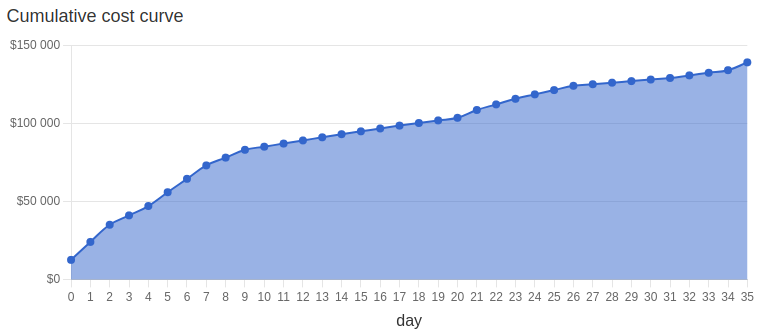
Picture 2. Cumulative cost curve for the project.
- 'Show tasklist' button for viewing the task table based on task hierarchy. Table shows task name, start and end time, cost as well as edit and delete links. Click on the 'Hide tasklist' button to hide the task table (picture 3).
- Project schedule as a Gantt chart, which shows task hierarchy and dependencies (picture 3).
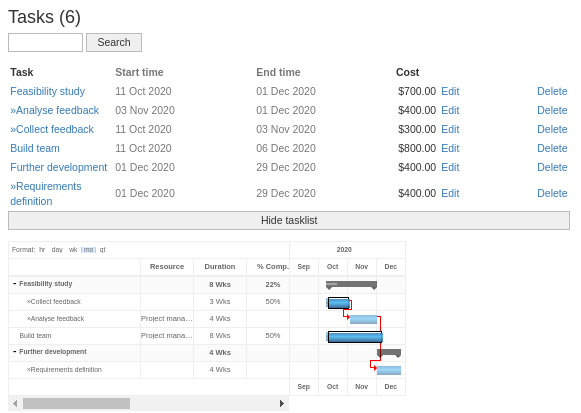
Picture 3. Task table and Gantt chart.
- Following items are visible for users having the simulation plan:
- Resource load. You can view resource load by selecting the resource and interval (days, weeks, months) in corresponding drop-down menus and clicking on the 'Show load with given resource' button.
- 'Show % complete and earned value' button for viewing project % complete information and earned value calculations. You can hide calculations by clicking on the 'Hide % complete and earned value' button.
- Simulation buttons (run simulation, show and remove simulation results as well as check simulation status)
- AI assistant (requires MonteCrystal plan, picture 4).
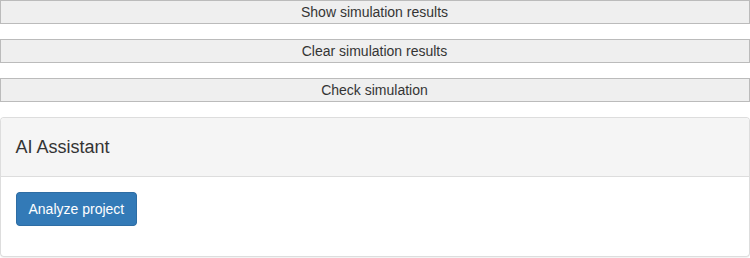
Picture 4. AI assistant.
Click the 'Analyze project' button. In a moment, you will receive an AI analysis of your project based on the simulation data.
Right hand side of the screen:
- List of assigned risks and other risks belonging to the logged-in user's company (risk management requires MonteCrystal plan), see assigning risks to projects. Click on the 'Show risk impacts' button to view risk impacts on project cost, duration and other factors (for example resulting benefits). Both expected value and total impact is shown (picture 5).
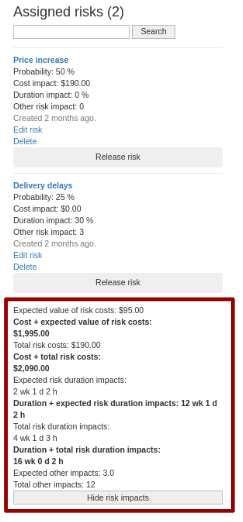
Picture 5. Project risk impacts.
- Project comments
- Users with simulation plan can also see other users from own organization. Information regarding privileges (whether user has project edit rights or not) is also shown. Edit rights allow viewing the project and updating its tasks. Click on the 'Set edit rights' button to set rights and on the 'Remove edit rights' button to remove them.