Français (France)
  Finnish (FI)
  English (United Kingdom)





MonteCrystal plan allows you to read or set task history data and model the probability distribution used in simulation.
History data can be read either from a csv- or a plain text (txt) file or from an Excel (xls/xlsx) file.
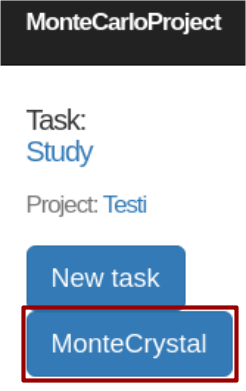
To access history data click on the 'MonteCrystal' button (see picture) on task display. Button is shown only with MonteCrystal plan.
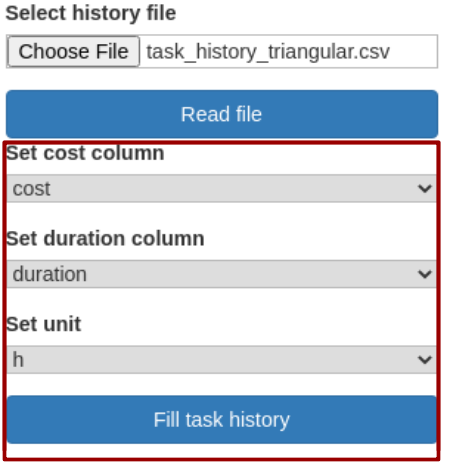
History data can be read either from a csv- or a plain text (txt) file or from an Excel (xls/xlsx) file. Click first on the 'Choose file' button to select file and then on the 'Read file' button. You can then fit cost and duration columns to correspond to columns in chosen file and set duration unit (h, d, wk), see pictures.
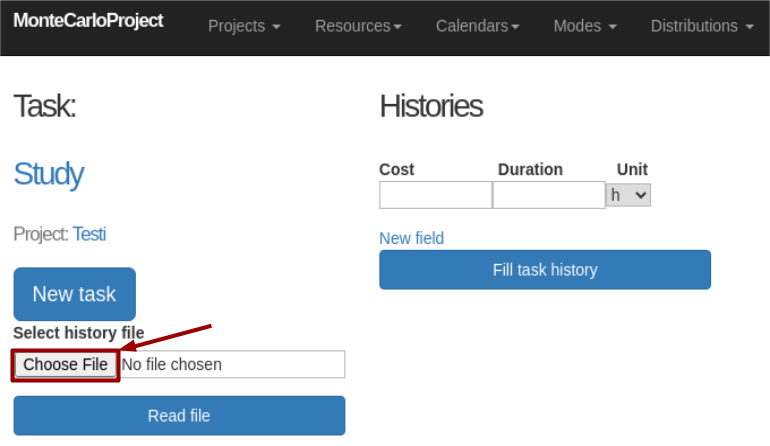
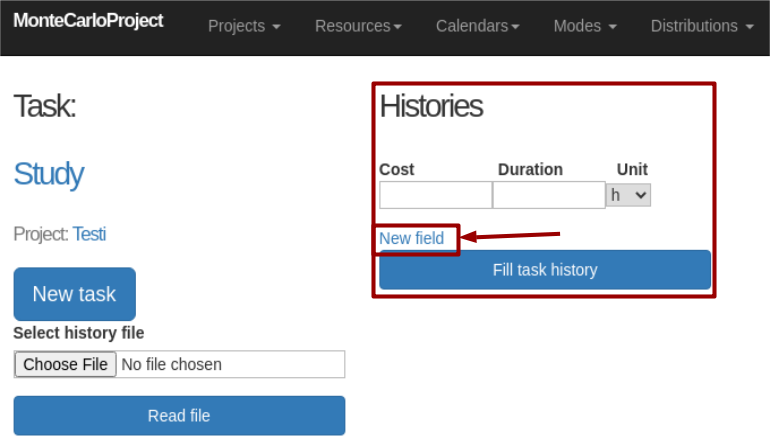
Alternatively you can set the history record by giving cost and duration as well as the duration unit (h, d, wk). Click on the 'New field' button to add new records. Finally Click on the 'Fill task history' button to save task history (see picture).
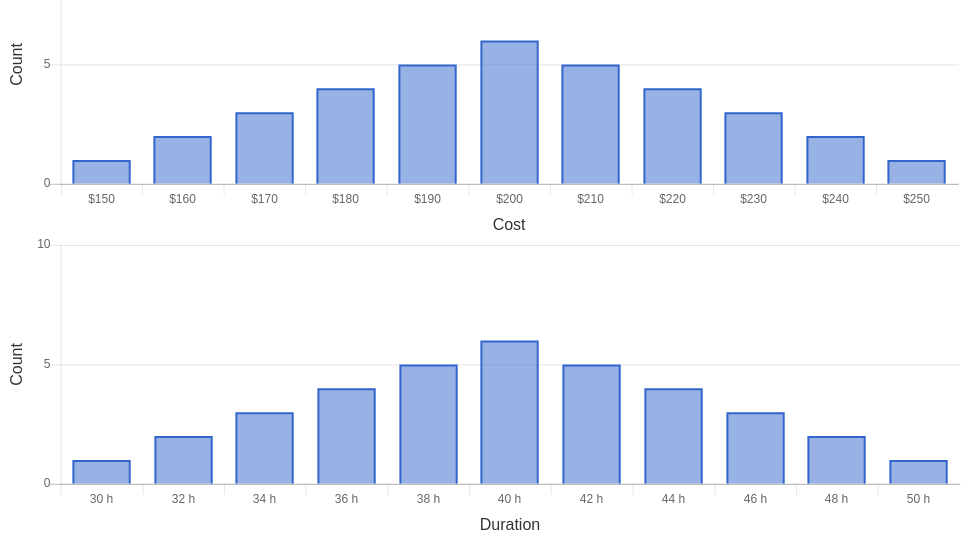
In both cases task history is shown as a histogram (see picture).
You can set the distribution type and fit its parameters for project simulation.
Choose the distribution type (Beta, Triangular, Normal, Uniform) and click on the 'Fit parameters' button (see picture).

The fitted distribution is shown both for task cost and duration. History data is shown as histogram and the fitted distribution as a curve (see picture).

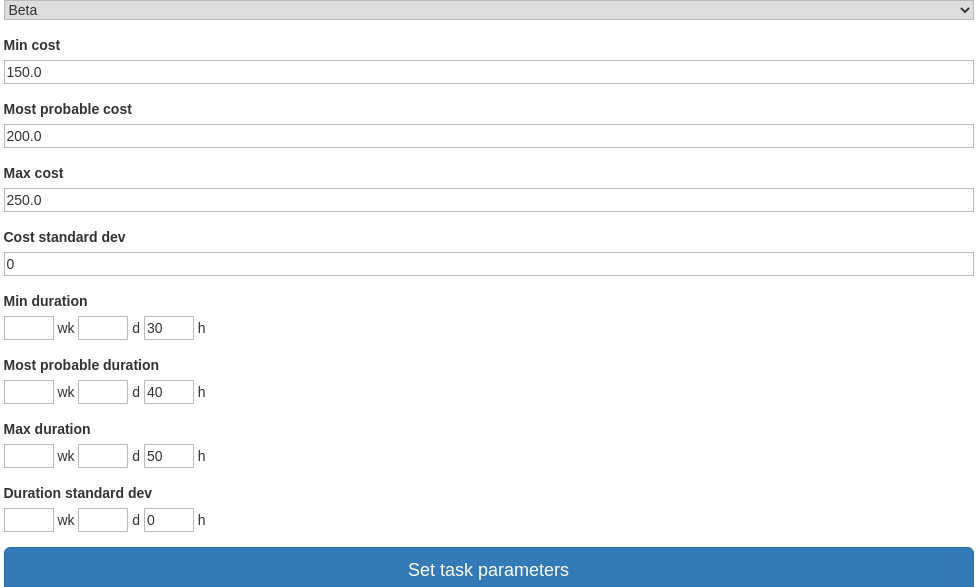
Bottom part of the display shows the chosen distribution and fitted parameters. You can modify all of these before saving them for project simulation. To save distribution and parameters click on the 'Set task parameters' button (see picture).