 Français (France)
  Finnish (FI)
  English (United Kingdom)






Open project list by selecting 'Projects' from the 'Projects' main menu and click on the project name to open the project display. Click on the 'Show tasklist' button (see picture 1) to see the task table showing project tasks. Click on the task name to open the task display.
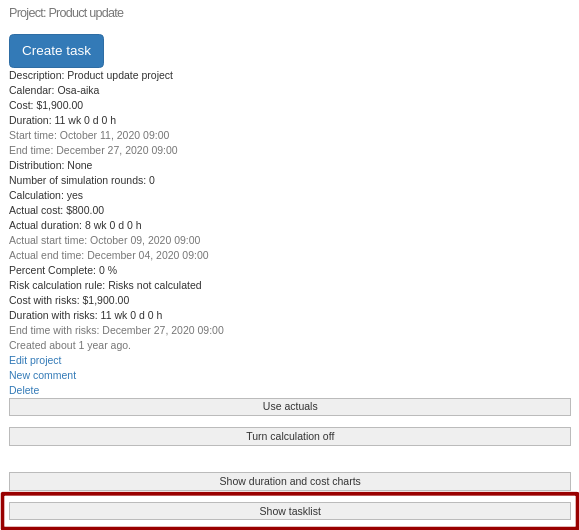
Picture 1. 'Show tasklist' button in project display.
Left hand side of the task display:
- Task title (name)
- Project which the task is assigned to
- 'Copy task' button (picture 2). Only a task that has no hierarchy or predecessor-successor dependencies can be copied.
- Button for creating a new task (picture 2)
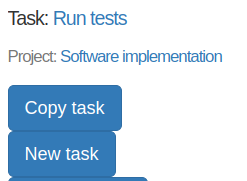
Picture 2. 'Copy task' and 'New task' buttons.
- MonteCrystal button (requires MonteCrystal plan) for managing task history data.
- List of assigned risks and other risks belonging to the logged-in user's company (risk management requires MonteCrystal plan), see assigning risks to tasks. Click on the 'Show risk impacts' button to view their impact on task cost, duration and other factors (for example resulting benefits). Both expected value and total impact is shown (see picture 3).
- List of assigned resources and other resources belonging to the logged-in user's company, see assigning resources to tasks
- Task comments, see Comment creation, editing and removal
Middle part of the display:
- Description
- Work time calendar
- Parent task if exists
- Cost
- Duration
- Start time
- Late start time, which is related to slack or float calculations
- End time
- Late end time, which is related to slack or float calculations
- Total slack or float
- Free slack or float
- Remaining duration (requires simulation plan)
- Calculation mode (requires simulation plan)
- Distribution (requires simulation plan)
- 'Use history data' (requires MonteCrystal plan). When it is on task history data is used in project simulation.
- Actuals (requires simulation plan)
- Actual cost
- Actual duration
- Actual start time
- Actual end time
- Percent complete information (% of task duration)
- Risk impacts (risk management requires MonteCrystal plan)
- Risk calculation rule, which determines how risk affected cost and duration are calculated for the task. Following options are available:
- 'Risks not calculated'. Risks do not affect task cost or duration.
- 'Expected value of risks'. Expected values of assigned risks' cost and duration are added to planned cost and duration.
- 'All risks'. Assigned risks' cost and duration impacts are added as such to planned cost and duration. Probabilities are not considered.
- Risk affected cost, see risk calculation rule above.
- Risk affected duration, see risk calculation rule above.
- Risk affected start time, see risk calculation rule above.
- Risk affected end time, see risk calculation rule above.
- Risk calculation rule, which determines how risk affected cost and duration are calculated for the task. Following options are available:
- Time of creation
- Link for editing the task
- Link for creating a new comment
- Link for deleting the task
- Click on the 'Show duration and cost charts' button to view graphical representation of task's planned, actual and risk affected durations and costs. Note that simulation plan is required for showing actuals and MonteCrystal plan is required for showing risk affected durations and costs.
- Click on the 'Show % complete and earned value' button to view earned value calculations for the task (requires simulation plan).
- Information (name, start date, possible parent's parent) and edit and delete links for the parent task if it exists
- Information and edit and delete links for task's sub tasks, if any
Right hand side of the display:
- List of predecessors and successors. Predecessors are tasks, that need to be finished or started before task start or finish. Successors are tasks, that can be started or finished after task start or completion. Dependencies are always described from predecessor to successor. There are following dependency types (see picture 3):
- Finish-to-start. Successor can be started when the predecessor is finished.
- Start-to-start. Successor can be started when the predecessor is started.
- Finish-to-finish. Successor can be finished when the predecessor is finished.
- Start-to-finish. Successor can be finished when the predecessor is started.
- Dependencies can be updated by selecting a new depencendy in the drop-down menu and clicking on the 'Update dependency' button. You can remove the link between task and its predecessor by clicking on the 'Remove predecessor link' button and equally remove the link between task and its successor by clicking on the 'Remove successor link' button. You can also edit or delete predecessors and successors by clicking on the respective links.
- List of other project tasks, that are not parents, sub tasks, predecessors or successors of the displayed task. You can:
- edit or delete these tasks by clicking on the respective links and
- set the task either as parent, sub task, predecessor or successor for the displayed task by clicking on respective buttons. You have to set the dependency type for predecessor-successor relationships, default is finish-to-start (see picture 3). Existing dependencies restrict the setting of new dependencies. Note for example that task can only have one parent task.
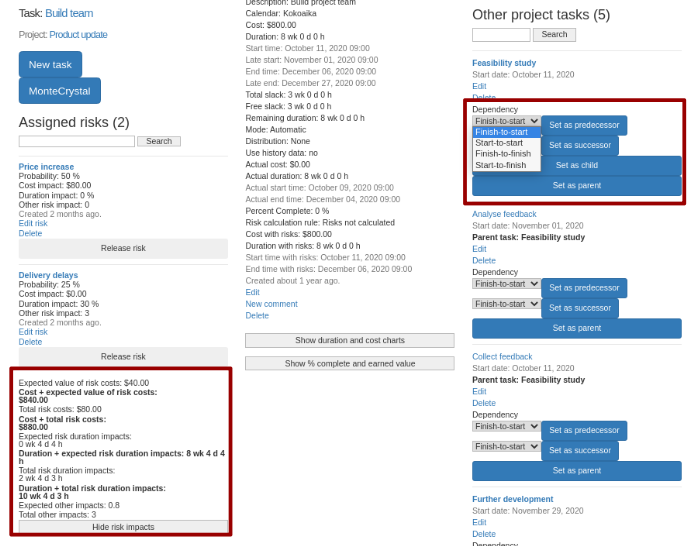
Picture 3. Task display and dependencies.