 Français (France)
  Finnish (FI)
  English (United Kingdom)








Please note that MonteCrystal plan is required for importing an XML file.
To import an XML file of a chosen project ,e.g. one exported from Microsoft Project (example in picture 1), select 'Import XML' from the 'Projects' menu (picture 2). This will open a file selection view (picture 3).
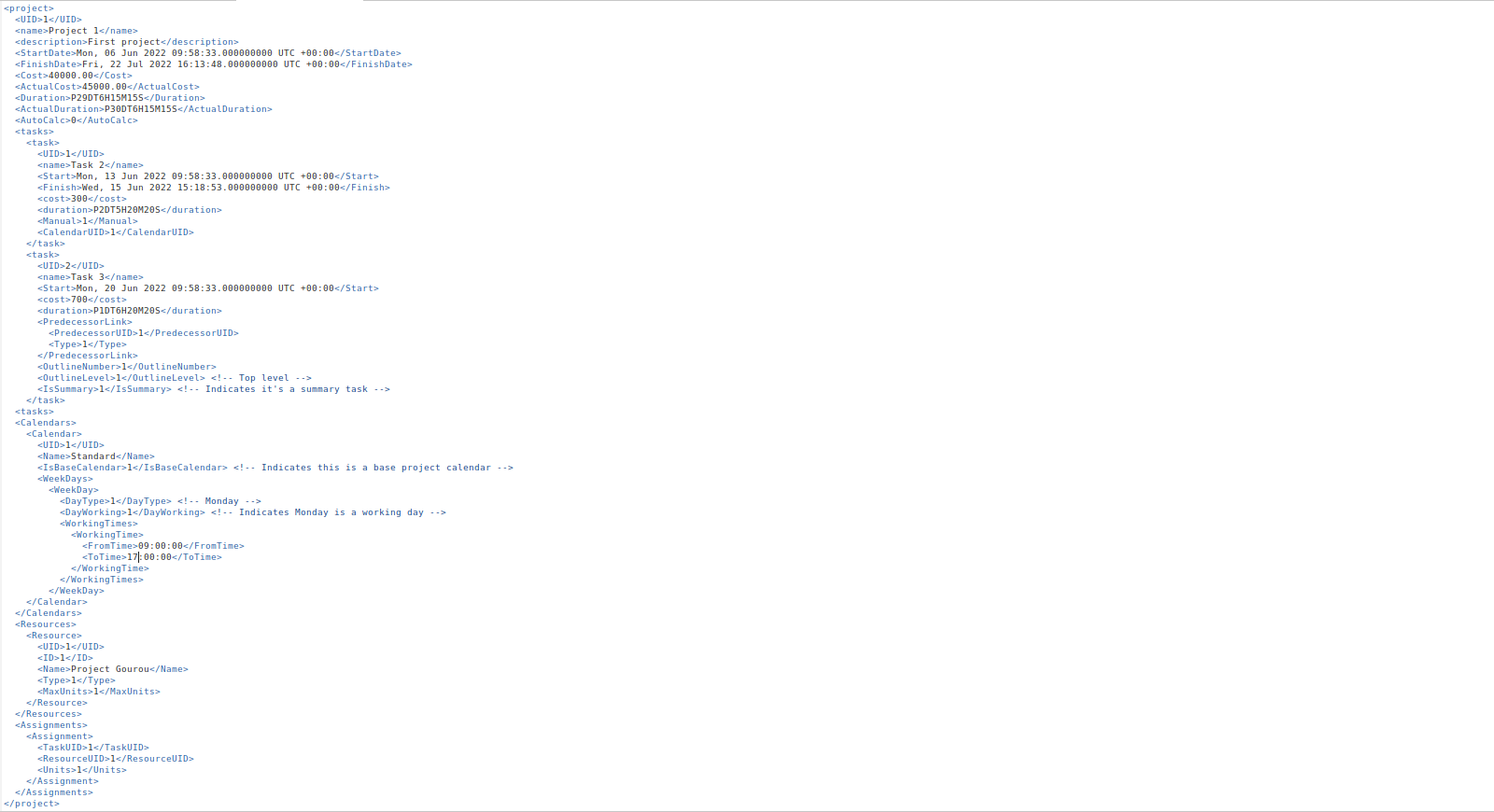
Picture 1. Example of an XML file to import.

Picture 2. 'Projects' view with 'Import XML' item.

Picture 3. XML file selection.
After file selection a view will open where you can attach the XML file fields to the selected MonteCarloProject models (such as 'Project', 'Task', 'Resource', 'Calendar'), see picture 4. Scroll down and press the 'Save' button at the bottom of the page to proceed.
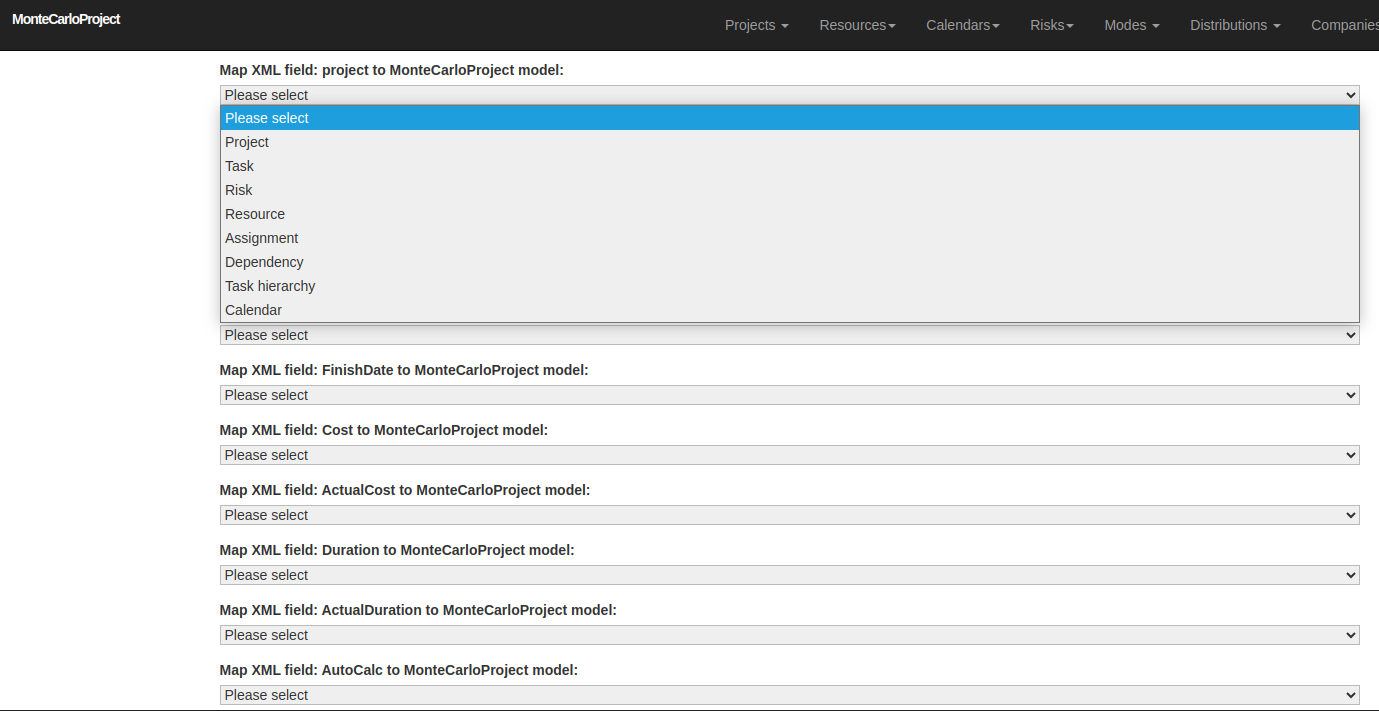
Picture 4. Attachment of the XML fields to the selected MonteCarloProject models.
After the model attachments you can proceed by attaching the XML fields to the MonteCarloProject model fields, or attributes, on the next screen (picture 5). Scroll down the page again and finally press the 'Save' button at the bottom of the page. You will then receive a notification that the XML file has been imported.
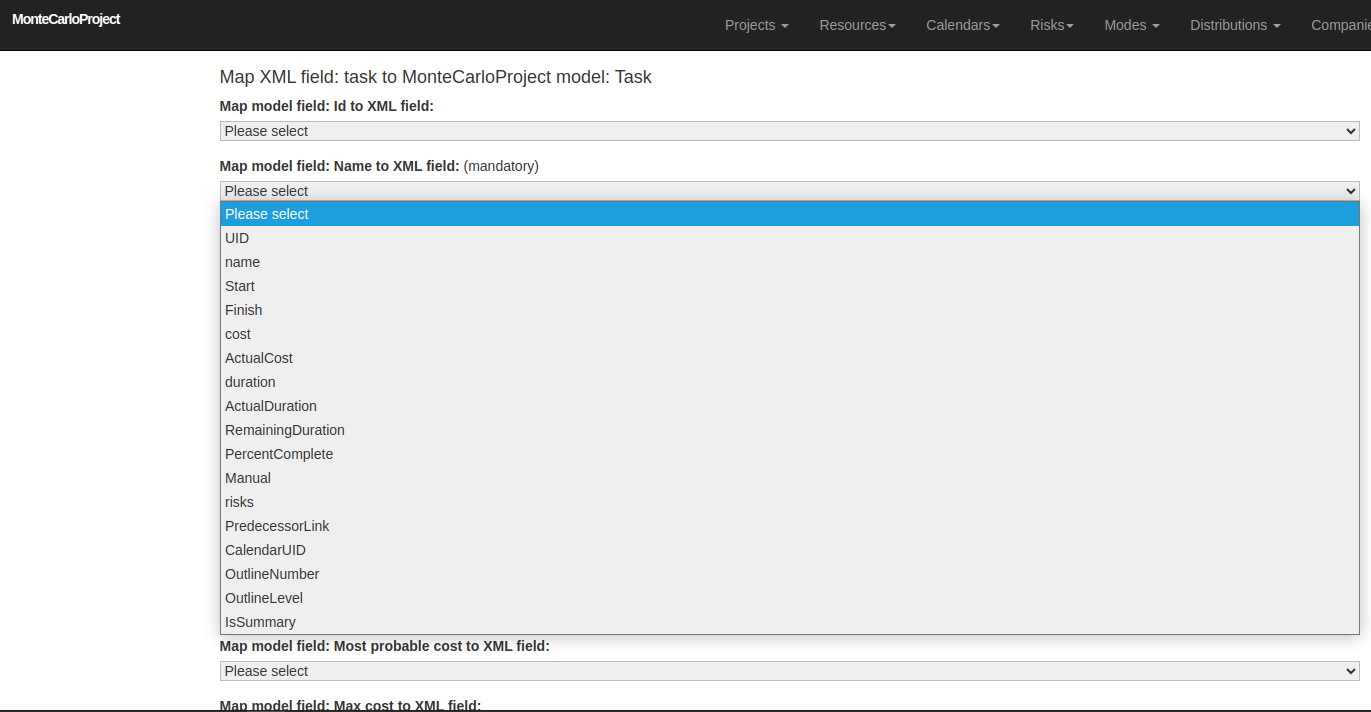
Picture 5. Attachment of the XML fields to the selected MonteCarloProject model fields (attributes).